 TidyBatch
How to bulk rename files safely
Renaming hundreds of files takes seconds. Undoing a bad rename can be impossible. Here's how to do it on Windows, macOS and Linux without losing anything, with the free built-in options first.
The three rules
- Preview before you apply. Every option below has a way to see the result first. Use it.
- Never let a rename overwrite a file. If two files end up with the same name, one of them can silently disappear (see the trap below).
- Have a way back. A backup, a copy of the folder, or a tool with undo.
Windows
File Explorer (built in)
Select the files, press F2, type a name and press Enter. Windows names them Name (1), Name (2), … It's fine for quick numbering, but there's no preview and no pattern support.
PowerToys PowerRename (free, from Microsoft)
The best free option on Windows. Install Microsoft PowerToys, select files, right-click and choose Rename with PowerRename. You get a live preview, search and replace with regular expressions, numbering and date variables. Because it renames through Explorer, Ctrl+Z in Explorer undoes the whole batch right afterwards.
PowerShell (built in, scriptable)
Add -WhatIf to preview. Nothing is renamed until you remove it:
# Preview: lowercase all .jpg names and replace spaces with underscores
Get-ChildItem -File *.jpg | Rename-Item -NewName { $_.Name.ToLower() -replace ' ', '_' } -WhatIf

# Looks right? Run the same line without -WhatIf
Get-ChildItem -File *.jpg | Rename-Item -NewName { $_.Name.ToLower() -replace ' ', '_' }
Rename-Item refuses to replace an existing file. That's good, but in a long batch it means a few files fail halfway through, so read the red errors.
macOS
Finder (built in)
Select the files, right-click and choose Rename…. You can Replace Text, Add Text or apply a Format with a counter, and the dialog shows an example of the result. Use Edit → Undo straight away if it isn't what you wanted.
Terminal
Use mv -n (no-clobber) in loops so an existing file is never overwritten, and print the commands before you run them:
# Preview (echo only), then remove "echo" to run
for f in *.JPG; do echo mv -n -- "$f" "${f%.JPG}.jpg"; done
Linux
Most distributions ship a rename command, but there are two different ones (the Perl version and the util-linux version) with different syntax. Run rename --version to see which you have. Both have a dry-run flag, but the util-linux one only prints the plan if you add -v:
# Perl rename (Debian/Ubuntu "rename" package): spaces -> underscores
rename -n 's/ /_/g' *

# util-linux rename (Arch, Fedora…): replace the first "IMG_" with "photo_"
rename -nv IMG_ photo_ *
# `IMG_1.JPG' -> `photo_1.JPG'
For your own loops, the same mv -n rule applies.
The trap: chains silently overwrite files
Say you renumber 1.txt, 2.txt, 3.txt to 2.txt, 3.txt, 4.txt. A simple loop renames 1.txt → 2.txt first. On Linux and macOS a plain mv or Python's os.rename overwrites the original 2.txt without warning. On Windows it fails instead, leaving the folder half renamed.
The fix is to rename in two phases: move every file to a temporary name first, then move each one to its final name. Or rename into a new, empty folder. A related trap: on Windows and macOS, Photo.JPG and photo.jpg are the same file, so collision checks must ignore case.
A tool that does all of this for you
TidyBatch is a free, open-source command-line tool built around these rules. It previews by default, renames in two phases, checks collisions without case and keeps a journal so you can undo with one command:
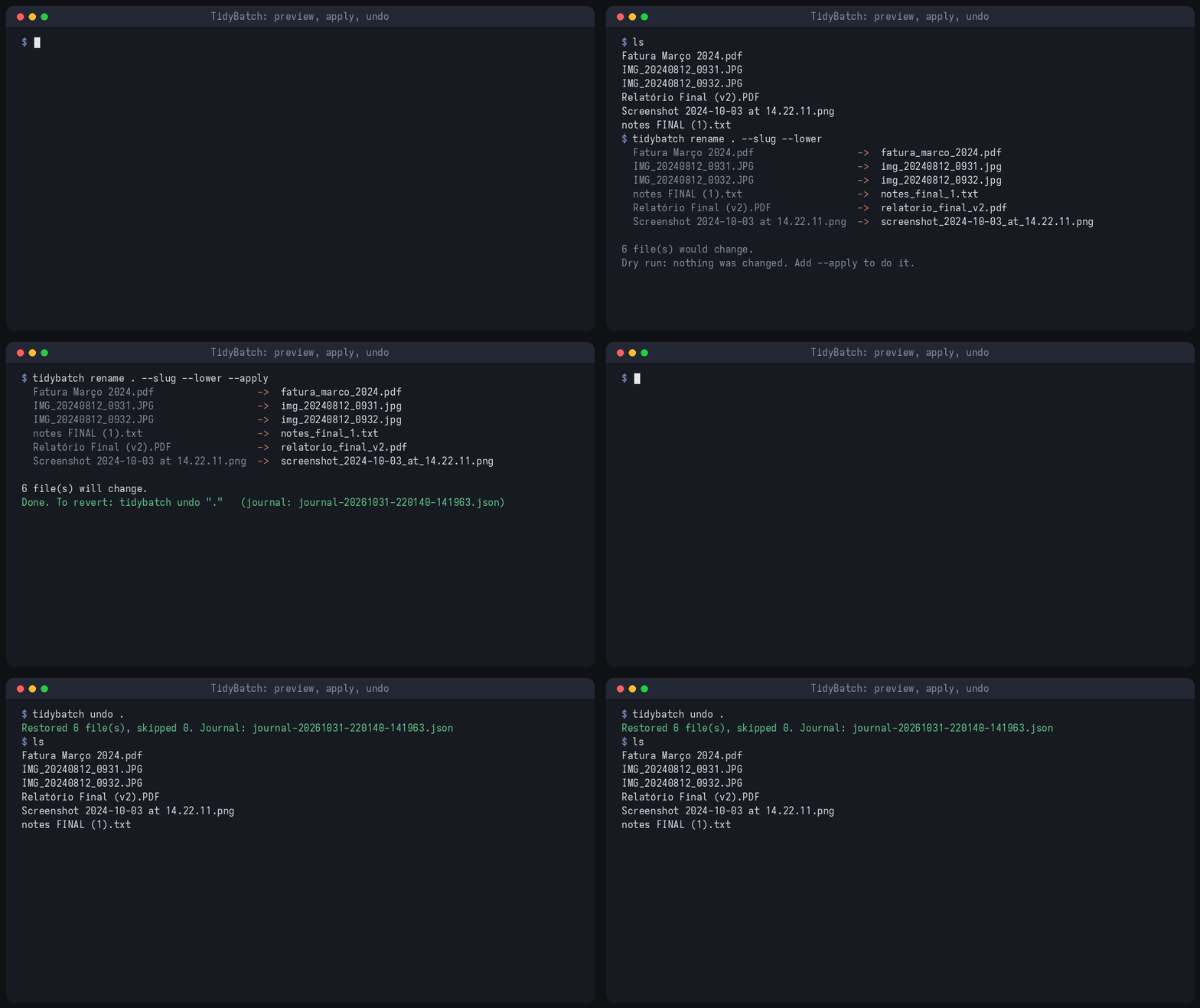
tidybatch rename ~/Downloads --slug --lower           # preview
tidybatch rename ~/Downloads --slug --lower --apply   # apply
tidybatch undo ~/Downloads                            # back to how it was
Prefer clicking to typing? On Windows, PowerRename is excellent and free. TidyBatch is for when you want the same command to work on every OS, in scripts, with an undo that survives closing the window.